This page was made by me, a Japanese person. The text relies on Google Translate.
Also, this article is for the current Japanese environment. The details may be different in your country, but I can’t make that decision.
Check in more detail.
Wrong translations may appear as sentences.If that’s okay, I’d be happy if you could read the rest.
When checking the speed of a page using “Page Speed Insights”, “Delete unused JavaScript” may appear as an item that can be improved.
However, even if you want to delete JavaScript that you are not using, you often do not know what is loaded or how to delete it.
So, in this article, I would like to write about how to check the JavaScript and CSS loaded in the article and how to set it so that it will not be loaded on that page.
The method I’m going to introduce is for WordPress.
Setting location
This time, I will introduce a sample function that can be used with copy and paste. The place to paste the functions introduced in the following items is “functions.php”.
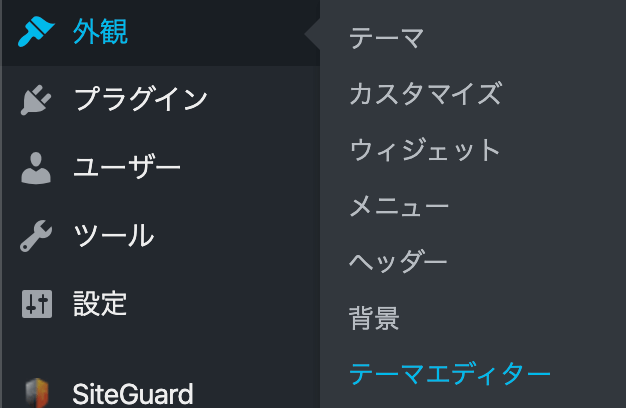
“Functions.php” is in the theme editor. Immediately after opening the theme editor, the style sheet (style.css) will be selected, so be sure to select “functions.php” and paste it.

Also, “functions.php” is an important file related to the display of the site. Be careful not to overwrite irrelevant places and make the display strange.
It is also recommended to perform work while backing up so that it can be restored to its original state.
Function to check JavaScript and CSS of page
First, paste the following sample into “functions.php”. Don’t forget to press the “Update File” button at the bottom of the screen after pasting. If you make a mistake in pasting here, you should get an error when you press the button.
If an error occurs, check the error location carefully.
function dc_css_js_dsp() {
  $wp_styles = wp_styles();
  $wp_scripts = wp_scripts();
  $handlename = '<dl><dt>List styles</dt><dd><ul>';
  foreach( $wp_styles->queue as $handle ) :
    $handlename .=  '<li>' . $handle .'</li>';
  endforeach;
  $handlename .= '</ul></dd>';
  $handlename .= '<dt>List scripts</dt><dd><ul>';
  foreach( $wp_scripts->queue as $handle ) :
    $handlename .=  '<li>' . $handle .'</li>';
  endforeach;
  $handlename .= '</ul></dd></dl>';
  return $handlename;
}
add_shortcode( 'dc_dsp', 'dc_css_js_dsp');A little supplement
You don’t have to remember this, so it’s okay to skip it and go to the next item, but I’ll briefly explain the function just in case.
In this function, “wp_styles ()” and “wp_scripts ()” get the style (CSS) and script (JavaScript) used, and the name is put in the list format in “$ handlename”.
And I registered it with “add_shortcode” to call it as a shortcode in the next item.
Check on page
Since the short code is available by the above function, go to the post edit screen of the page to be actually examined and paste the following short code in the “paragraph” block.
[dc_dsp]
You can just add it after the usual text as usual.
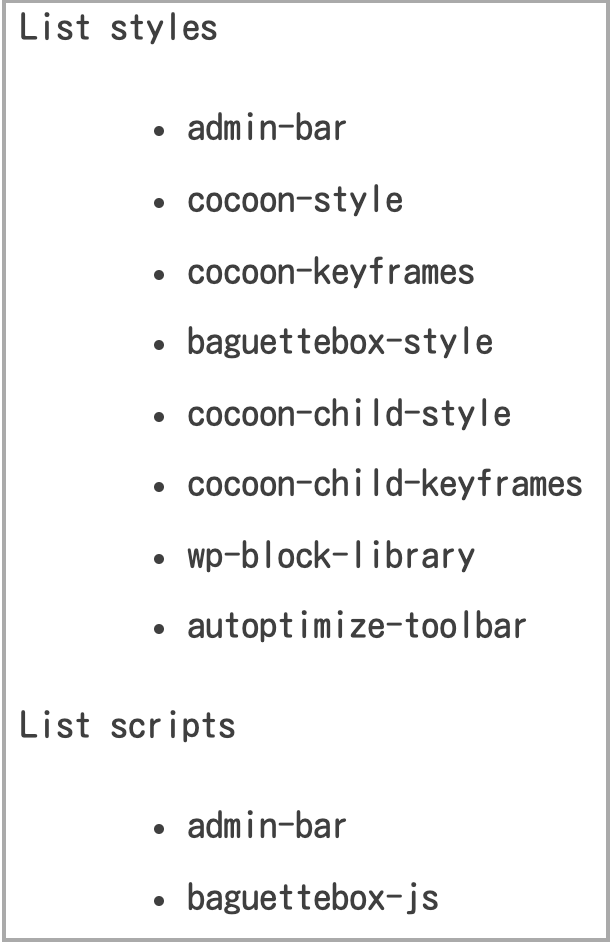
After pasting the shortcode into the paragraph, let’s check the page with “Preview”. The CSS and JavaScript used on that page should be displayed in the shortcode part as shown in the example below.
You can just add it after the usual text as usual.
After pasting the shortcode into the paragraph, let’s check the page with “Preview”. The CSS and JavaScript used on that page should be displayed in the shortcode part as shown in the example below.
Erase unnecessary items
How to check unnecessary items
The CSS and JavaScript displayed by the above method will vary depending on the plugin and theme you are using. Some of the ones shown are actually used, but some are called even though they are not used on that page.
But to determine what you don’t need, you need to find out which movement each one corresponds to. The recommended way to find out is to actually search for the name on Google.
When I tried searching for “adomin-bar”, I found that it was for displaying the toolbar when a logged-in user viewed the page. I think this will disappear naturally in the actual public environment. In other words, it seems that it is okay not to erase this.
In this way, when actually erasing, let’s check each movement before erasing. If you delete what you need, the page display and functionality may be impaired.
Function to erase
Put a function to actually erase it. I would like to write a sample of how to erase using the one with high usage rate in WordPress as an example. Add it to “functions.php” in the same way as the above function. (The order can be either above or below the previous function)

■ Click here for the base of the function to erase
function dc_dq_style_script() {
 if( ! is_page(10)){
     wp_dequeue_style( 'contact-form-7' );
     wp_dequeue_script( 'contact-form-7' );
 }
}
add_action( 'wp_enqueue_scripts', 'dc_dq_style_script' );When creating an inquiry page with WordPress, “contact form 7” is a simple and easy-to-understand plugin, so it is often used.
However, the CSS and Script of “contact form 7” are called even outside the contact page. Therefore, this function invalidates the call except for a specific page.
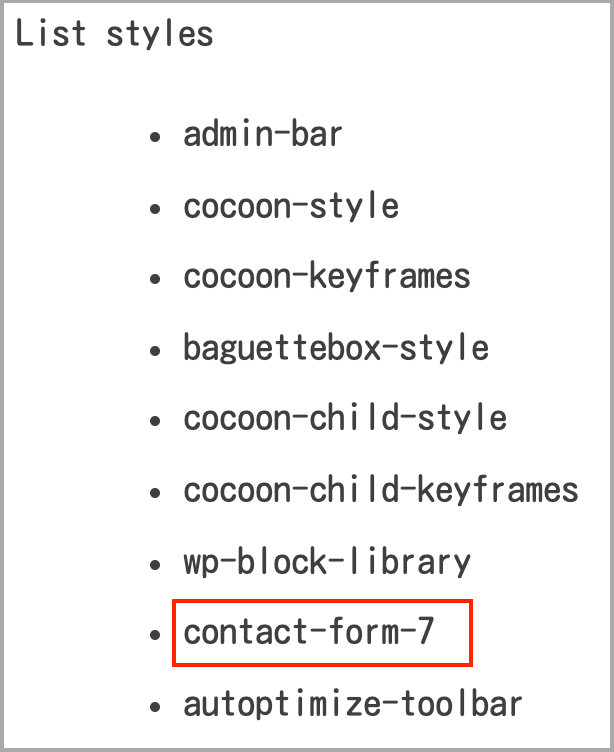
When you check the list of “styles” in the shortcode above, if “contact-form-7” is called as in the above example, then the CSS of contact form 7 is called on that page. Will be.
If the page is not the “Contact Us” page, you can determine that it is an item that you do not need to use.
Therefore, the above function uses “wp_dequeue_style (‘contact-form-7’);” to disable reading. Also, “wp_dequeue_script (‘contact-form-7’);” stops loading JavaScript.
In this way, CSS can be disabled with “wp_dequeue_style (‘item name’)” and Script can be disabled with “wp_dequeue_script (‘item name’)”.
For “Item name”, enter the name in the list (contact-form-7 in the above example) as it is.
Also, “if (! Is_page (10))” means processing on a page other than page ID 10. In other words, it is a function that disables CSS and Script loading on pages other than page ID 10.
You can check the page ID from the “Post List” or “Fixed Page” on the dashboard, and when you move the mouse cursor to the page (article) you are creating, the URL will appear at the bottom left. In the example below, 3003 following “post =” is the ID.
If the URL does not appear, just open the article on the edit screen and a similar display will appear in the URL bar.

important point
If you try to erase some Scripts and CSS, some items may not be erased. The cause is the operation that occurs because “wp_dequeue_style and wp_dequeue_script” cannot be used due to the difference in the registration method.
In that case, it can be disabled in the same way by “wp_deregister_style” and “wp_deregister_script”. You can erase it by rewriting the sample to “wp_dequeue_style”-> “wp_deregister_style” “wp_dequeue_script”-> “wp_deregister_script”. If you can’t erase it, please try it.
to add
If there are multiple inquiry pages, you can respond by increasing the contents of if as follows. Of course, it works even if you set it to only two or four. When changing, please delete or increase “&&! Is_page (12)” as a lump.
function dc_dq_style_script() {
  if( ! is_page(10) && ! is_page(11) && ! is_page(12)){
    wp_dequeue_style( 'contact-form-7' );
    wp_dequeue_script( 'contact-form-7' );
  }
}
add_action( 'wp_enqueue_scripts', 'dc_dq_style_script' );If you want to reflect it on all pages, write the processing code above “if”. As an example, “wp_dequeue_script (‘comment-reply’);” I would like to add this process.
By the way, this “comment-reply” is a script about comments, and since comments are turned off on this site, loading is disabled on all pages.
function dc_dq_style_script() {
  wp_dequeue_script('comment-reply');
  if( ! is_page(10) && ! is_page(11) && ! is_page(12)){
    wp_dequeue_style( 'contact-form-7' );
    wp_dequeue_script( 'contact-form-7' );
  }
}
add_action( 'wp_enqueue_scripts', 'dc_dq_style_script' );Finally
The above is the method used in Japan when performing “Remove unused JavaScript”.I hope this information is useful to you.